How to Validate a PFX Certificate Chain and Find Missing Intermediates with PowerShell
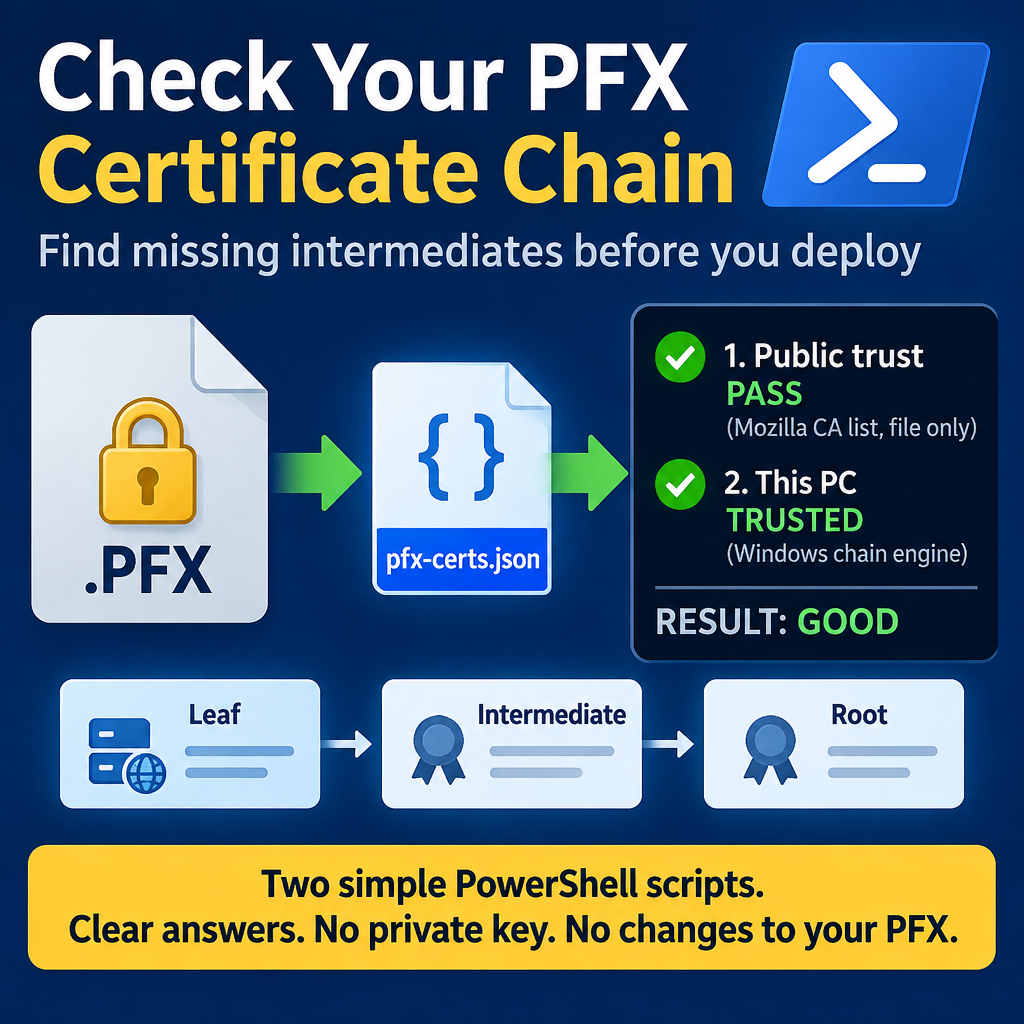
A common cause of “certificate not trusted” errors is a PFX file that is missing one of its intermediate certificates. Browsers and Windows often hide the problem by quietly downloading the missing certificate. Other clients, such as curl, Java, Python, Linux servers, or an API caller, do not, and fail with errors like unable to verify the first certificate.
This guide gives you two small PowerShell scripts. The first reads your PFX and saves a JSON file that contains only public certificate data. The second checks that file to find out whether the chain is complete, whether it is publicly trusted, and whether this PC trusts it. Nothing is imported into any Windows certificate store, and the PFX itself is never changed. If someone else holds the PFX, they can run the first script and send you the JSON instead, because it contains no private key and no password.
TL;DR
- Run
Get-PfxCertInfo.ps1against the PFX. It writespfx-certs.jsonwith public data only (no private key, no password, no file path). - Run
Test-PfxCertInfo.ps1 -Json .\pfx-certs.json. - You get two separate answers: public trust (using only the certificates in the file, checked against the Mozilla CA list) and this PC (what Windows itself would accept).
- If public trust fails but this PC says trusted, the file is incomplete and Windows is filling the gap for you.
Background: what a “full chain” is
A TLS certificate chain normally looks like this:
Leaf (your site) -> Intermediate CA -> Root CA (self-signed, trusted by clients)The server must send the leaf and the intermediate(s). Clients already trust the root, so the root is usually left out. A PFX with the leaf plus its intermediate(s) is normally what you want to upload to App Service, Application Gateway, Key Vault, and similar services.
Some CAs add a cross-signed certificate on top. For example, a GoDaddy PFX can contain GoDaddy TLS Intermediate CA DV - R1v1 and GoDaddy TLS Root CA - R1, where the second one is issued by Go Daddy Root Certificate Authority - G2. That is normal. The G2 root is not in the file because clients already trust it.
Why Windows alone can’t answer this
The obvious checks all have the same weakness. Get-PfxData only lists what is in the file and proves nothing about the links. Asking Windows to build the chain can quietly use an intermediate that is already installed in your Windows CA store, or download one through the certificate’s AIA field. The result says “trusted” even though the PFX is broken.
So the validation is split into two answers that are reported separately:
| Answer | How it is checked | What it tells you |
|---|---|---|
| 1. Public trust | OpenSSL, using only the certificates in the file, against the Mozilla public CA list. No Windows store is read. | Whether the file is complete and chains to a public root. This is what curl, Java, Linux and other PCs will see. |
| 2. This PC | The Windows chain engine, as configured on the machine running the script. | Whether Windows would accept it, and which certificates Windows had to supply that were not in the file. |
Step 1: Export the certificate details
Save the script below as Get-PfxCertInfo.ps1 and run it:
.\Get-PfxCertInfo.ps1 -Pfx "C:\path\cert.pfx"It prompts for the PFX password (press Enter if there is none) and writes pfx-certs.json in the current folder. It works in Windows PowerShell 5.1 and PowerShell 7, and needs nothing else installed.
What is in the JSON: for each certificate, the subject, issuer, validity dates, serial number, thumbprint, a few extensions (CA flag, host names, AIA), a hasPrivateKey true/false, and the certificate itself as PEM text. All of this is public information. A website sends the same data to every visitor.
What is never exported:
- The private key. Only a true/false
hasPrivateKeyis recorded. - The password. The prompt is masked and the password is only held in memory.
- The PFX file path or the user name.
It also does not import anything into the Windows certificate stores, and it does not change the PFX. The certificates contain the host name and organization name, so do not post the JSON publicly if those names are internal.
If the password is wrong, the script prints a plain message and writes no file, instead of a raw Windows error:
The PFX password appears to be wrong. Nothing was exported. Please re-run and try again.A missing file or a file that is not a PFX also gets a short message and no output file.
The full script, with comments that explain each part:
# Get-PfxCertInfo.ps1
# Usage: .\Get-PfxCertInfo.ps1 -Pfx "C:\path\cert.pfx"     (prompts for the PFX password; press Enter if none)
#
# PURPOSE
#   Lists every certificate inside a .pfx file and saves the PUBLIC details to pfx-certs.json,
#   so the certificate chain can be checked later (for example, to see if an intermediate certificate is missing).
#
# WHAT IT EXPORTS (all of this is public information)
#   Subject, issuer, validity dates, serial number, thumbprint, a few certificate extensions,
#   and each certificate in PEM form (the same data a website sends to every visitor).
#   For the private key it records only TRUE/FALSE ("hasPrivateKey"), never the key itself.
#
# WHAT IT DOES NOT DO
#   - It does NOT export or save the private key.
#   - It does NOT save or log the password (the prompt is masked and the password is only held in memory).
#   - It does NOT save the .pfx file path or your user name.
#   - It does NOT import anything into the Windows certificate stores, and does not change the PFX file.
#
# Works in Windows PowerShell 5.1 and PowerShell 7. No other software is needed.
param(
    [Parameter(Mandatory)][string]$Pfx,          # path to the .pfx file to read
    [string]$Out = '.\pfx-certs.json'            # where to write the result (default: current folder)
)

# Stop early with a clear message if the path is wrong.
if (-not (Test-Path $Pfx)) { Write-Host "File not found: $Pfx" -ForegroundColor Red; return }

# Read the PFX into memory with the built-in Get-PfxData. This only READS the file: nothing is imported into Windows,
# and Windows does not look up or add any missing certificates. Read-Host -AsSecureString masks the password as you type.
try {
    $d = Get-PfxData -FilePath $Pfx -Password (Read-Host "PFX password (Enter if none)" -AsSecureString) -ErrorAction Stop
} catch {
    # Windows reports a wrong password as error 0x80070056 ("network password is not correct"); translate it into plain English.
    if ($_.Exception.Message -match '0x80070056|password') {
        Write-Host "The PFX password appears to be wrong. Nothing was exported. Please re-run and try again." -ForegroundColor Red
    } else {
        Write-Host "Could not read the PFX (is it a valid .pfx file?): $($_.Exception.Message)" -ForegroundColor Red
    }
    return   # stop here so no (empty) output file is written
}

# Helper: returns the human-readable text of one certificate extension (looked up by its OID), or $null if the cert doesn't have it.
#   2.5.29.19 = Basic Constraints (is this a CA certificate?)   2.5.29.17 = Subject Alternative Names (the host names)
#   1.3.6.1.5.5.7.1.1 = Authority Information Access (where the issuing CA publishes its certificate)
function Ext($c, $oid) { $e = $c.Extensions | Where-Object { $_.Oid.Value -eq $oid } | Select-Object -First 1; if ($e) { $e.Format($false) } else { $null } }

# A PFX stores the server (leaf) certificate separately from the rest of the chain (intermediates / root).
# Gather both so we can see exactly what the file contains. 'Slot' records which place each one came from.
$all = @()
foreach ($c in $d.EndEntityCertificates) { $all += [pscustomobject]@{ Slot = 'EndEntity'; Cert = $c } }
foreach ($c in $d.OtherCertificates)     { $all += [pscustomobject]@{ Slot = 'Other';     Cert = $c } }

# Build one record per certificate. Every field below is public certificate data.
$list = foreach ($x in $all) {
    $c = $x.Cert
    [pscustomobject]@{
        pfxSlot = $x.Slot                         # EndEntity = the server/leaf certificate, Other = intermediates/root stored in the file
        subject = $c.Subject                      # who the certificate was issued to
        issuer = $c.Issuer                        # which CA signed it (used to check the chain links together)
        notBefore = $c.NotBefore.ToUniversalTime().ToString('o')   # valid from (UTC)
        notAfter = $c.NotAfter.ToUniversalTime().ToString('o')     # expires (UTC)
        serial = $c.SerialNumber                  # CA-assigned serial number
        thumbprint = $c.Thumbprint                # SHA-1 fingerprint, a unique ID for this certificate
        hasPrivateKey = $c.HasPrivateKey          # TRUE/FALSE only. The private key is never written to the JSON.
        basicConstraints = Ext $c '2.5.29.19'     # shows whether it is a CA certificate (expected for intermediates/roots)
        san = Ext $c '2.5.29.17'                  # host names the certificate is valid for
        aia = Ext $c '1.3.6.1.5.5.7.1.1'          # where the issuing CA's certificate can be downloaded
        # The certificate itself as PEM text (base64). This is the public certificate only, with no key material.
        pem = "-----BEGIN CERTIFICATE-----`n" + [Convert]::ToBase64String($c.RawData, 'InsertLineBreaks') + "`n-----END CERTIFICATE-----"
    }
}
# Save the records as JSON (the only file this script writes) and show the next step.
ConvertTo-Json -InputObject @($list) | Set-Content $Out -Encoding utf8
"Wrote $(@($list).Count) certificate(s) to $Out. Next: .\Test-PfxCertInfo.ps1 -Json $Out"
Step 2: Validate the JSON
Save this as Test-PfxCertInfo.ps1 and run it on the JSON from Step 1:
.\Test-PfxCertInfo.ps1 -Json .\pfx-certs.jsonRequirements: OpenSSL (the copy that comes with Git for Windows, C:\Program Files\Git\usr\bin\openssl.exe, is found automatically, as is any openssl on your PATH) and an internet connection the first time, to download the Mozilla CA list. The list is cached in your temp folder for 7 days.
Options, all optional:
| Option | Purpose |
|---|---|
-Hostname name | Also checks that the leaf certificate is valid for that name. |
-Root root.pem | Trusts this root instead of the public list. Use it for a private or internal CA. |
-PublicRoots cacert.pem | Uses a local copy of the Mozilla list, for offline use. Download it from https://curl.se/ca/cacert.pem. |
-OpenSsl path | Path to openssl.exe if it is not found automatically. |
The script first prints a table of the certificates in the file with their role (Leaf, Intermediate, Root), issuer, expiry date, and status (ok, EXPIRED, or NOT YET VALID). It then prints the two answers and a one-line result.
Example: a complete chain
1. PUBLIC TRUST (the Mozilla public CA list, using only the certs in the file):
   PASS
2. THIS PC (Windows, as configured on this machine):
   TRUSTED

RESULT: GOOD. Publicly trusted, trusted by this PC, and the file contains everything needed.
Example: the intermediate is missing
1. PUBLIC TRUST (the Mozilla public CA list, using only the certs in the file):
   FAIL
   CN=icefire555.com
   error 20 at 0 depth lookup: unable to get local issuer certificate
   error leaf: verification failed
   -> MISSING: 'CN=icefire555.com' is issued by 'CN=Sectigo Public Server Authentication CA DV R36, O=Sectigo Limited, C=GB', which is not in the file and is not a root in the list. If that issuer is an intermediate, the PFX is incomplete.
2. THIS PC (Windows, as configured on this machine):
   TRUSTED
   Windows had to supply cert(s) that are NOT in the file: CN=Sectigo Public Server Authentication CA DV R36, O=Sectigo Limited, C=GB

RESULT: INCOMPLETE FILE. This PC accepts it only because Windows supplied the missing cert(s) above. Other clients (curl, Java, Linux, other PCs) will fail.
This is the case a normal Windows check gets wrong. Windows downloaded the missing Sectigo intermediate by itself and reported the certificate as fine, while the public check shows that the file really is incomplete.
The full script:
# Usage: .\Test-PfxCertInfo.ps1 -Json .\pfx-certs.json
# Validates the certificates in a pfx-certs.json made by Get-PfxCertInfo.ps1. Reports two separate answers:
#   1. PUBLIC TRUST : does the leaf chain, using ONLY the certs in the file, to a root in the Mozilla public CA list?
#                     (independent of any Windows store - so a PFX with a missing intermediate FAILS here)
#   2. THIS PC      : would Windows itself accept the leaf? (Windows may fetch/borrow missing intermediates; any it supplied are listed)
# Optional: -Root <root.pem> to test a private CA instead of the public list, -Hostname <name>, -PublicRoots <cacert.pem> for offline use.
param([Parameter(Mandatory)][string]$Json, [string]$Root, [string]$Hostname, [string]$PublicRoots, [string]$OpenSsl)

if (-not $OpenSsl) {
    $OpenSsl = @('C:\Program Files\Git\usr\bin\openssl.exe', (Get-Command openssl -ErrorAction SilentlyContinue).Source) | Where-Object { $_ -and (Test-Path $_) } | Select-Object -First 1
    if (-not $OpenSsl) { Write-Host "OpenSSL not found. Install Git for Windows or pass -OpenSsl <path>." -ForegroundColor Red; return }
}
if (-not (Test-Path $Json)) { Write-Host "JSON file not found: $Json" -ForegroundColor Red; return }
if ($Root -and -not (Test-Path $Root)) { Write-Host "Root file not found: $Root" -ForegroundColor Red; return }

$certs = @((Get-Content $Json -Raw | ConvertFrom-Json) | ForEach-Object { $_ })
$leaf = $certs | Where-Object pfxSlot -eq 'EndEntity' | Select-Object -First 1
if (-not $leaf) { Write-Host "No end-entity (leaf) certificate in the JSON." -ForegroundColor Red; return }
$X509 = [Security.Cryptography.X509Certificates.X509Certificate2]
function FromPem($pem) { $X509::new([Convert]::FromBase64String(($pem -replace '-----(BEGIN|END) CERTIFICATE-----', '' -replace '\s', ''))) }

# Public trust anchors: the Mozilla CA list (cached for 7 days), or the private root supplied with -Root
$anchor = $null
if ($Root) { $anchor = (Resolve-Path $Root).Path; $anchorLabel = "your root ($Root)" }
else {
    $anchor = if ($PublicRoots) { $PublicRoots } else { Join-Path $env:TEMP 'mozilla-cacert.pem' }
    if (-not $PublicRoots -and (-not (Test-Path $anchor) -or ((Get-Date) - (Get-Item $anchor).LastWriteTime).TotalDays -gt 7)) {
        try { Invoke-WebRequest 'https://curl.se/ca/cacert.pem' -OutFile $anchor -UseBasicParsing -ErrorAction Stop }
        catch { Write-Host "Could not download the public CA list (https://curl.se/ca/cacert.pem). Download it manually and pass -PublicRoots <path>." -ForegroundColor Red; $anchor = $null }
    }
    $anchorLabel = 'the Mozilla public CA list'
}

$tmp = Join-Path $env:TEMP "pfxcheck-$PID"; New-Item -ItemType Directory $tmp | Out-Null
try {
    $now = [DateTime]::UtcNow
    "Certificates in the file:"
    $certs | ForEach-Object {
        $role = if ($_.subject -eq $_.issuer) { 'Root' } elseif ($_.pfxSlot -eq 'EndEntity') { 'Leaf' } else { 'Intermediate' }
        $end = ([datetime]$_.notAfter).ToUniversalTime()
        [pscustomobject]@{ Role = $role; Subject = $_.subject; Issuer = $_.issuer; Expires = $end.ToString('yyyy-MM-dd'); Status = $(if ($now -gt $end) { 'EXPIRED' } elseif ($now -lt ([datetime]$_.notBefore).ToUniversalTime()) { 'NOT YET VALID' } else { 'ok' }) }
    } | Format-Table -AutoSize -Wrap

    # ---- 1. PUBLIC TRUST (OpenSSL, file contents only) ----
    $others = @($certs | Where-Object { $_ -ne $leaf })
    $leaf.pem | Set-Content "$tmp\leaf.pem" -Encoding ascii
    if ($others.Count) { ($others | ForEach-Object pem) -join "`n" | Set-Content "$tmp\file-certs.pem" -Encoding ascii }
    $publicOk = $false; $publicText = ''
    if ($anchor) {
        $a = @('verify', '-CAfile', $anchor)
        if ($others.Count) { $a += @('-untrusted', "$tmp\file-certs.pem") }
        if ($Hostname) { $a += @('-verify_hostname', $Hostname) }
        $prev = $ErrorActionPreference; $ErrorActionPreference = 'Continue'
        $publicText = (& $OpenSsl @a "$tmp\leaf.pem" 2>&1 | Out-String).Trim() -replace [regex]::Escape("$tmp\leaf.pem"), 'leaf'
        $ErrorActionPreference = $prev
        $publicOk = [bool]($publicText -match ': OK$')
    }
    "1. PUBLIC TRUST ($anchorLabel, using only the certs in the file):"
    if ($publicOk) { Write-Host "   PASS" -ForegroundColor Green; if ($Hostname) { "   Hostname '$Hostname' matches." } }
    elseif (-not $anchor) { Write-Host "   NOT CHECKED (no root list available)" -ForegroundColor Yellow }
    else {
        Write-Host "   FAIL" -ForegroundColor Red
        $publicText -split "`n" | ForEach-Object { "   $_" }
        if ($publicText -match 'expired') { Write-Host "   -> A certificate has expired (see the table above)." -ForegroundColor Yellow }
        if ($publicText -match 'hostname mismatch') { Write-Host "   -> The leaf is not valid for '$Hostname'." -ForegroundColor Yellow }
        $rootSubjects = @(); if ($anchor) { $rootSubjects = [regex]::Matches((Get-Content $anchor -Raw), '-----BEGIN CERTIFICATE-----.*?-----END CERTIFICATE-----', 'Singleline') | ForEach-Object { (FromPem $_.Value).Subject } }
        $fileSubjects = @($certs | ForEach-Object subject)
        foreach ($c in ($certs | Where-Object { $_.subject -ne $_.issuer -and $_.issuer -notin $fileSubjects })) {
            if ($c.issuer -in $rootSubjects) { Write-Host "   -> '$($c.subject)' is issued by '$($c.issuer)', a public root, so the file ends correctly here. The failure is something else (see above)." -ForegroundColor Yellow }
            else { Write-Host "   -> MISSING: '$($c.subject)' is issued by '$($c.issuer)', which is not in the file and is not a root in the list. If that issuer is an intermediate, the PFX is incomplete." -ForegroundColor Yellow }
        }
    }

    # ---- 2. THIS PC (Windows chain engine, may borrow/fetch certs) ----
    $chain = [Security.Cryptography.X509Certificates.X509Chain]::new()
    $chain.ChainPolicy.RevocationMode = 'NoCheck'
    foreach ($c in $others) { $chain.ChainPolicy.ExtraStore.Add((FromPem $c.pem)) | Out-Null }
    $pcOk = $chain.Build((FromPem $leaf.pem))
    $fileThumbs = @($certs | ForEach-Object { (FromPem $_.pem).Thumbprint })
    $supplied = @($chain.ChainElements | ForEach-Object Certificate | Where-Object { $_.Thumbprint -notin $fileThumbs -and $_.Subject -ne $_.Issuer })   # roots are expected to come from the PC
    "2. THIS PC (Windows, as configured on this machine):"
    if ($pcOk) { Write-Host "   TRUSTED" -ForegroundColor Green } else { Write-Host "   NOT TRUSTED: $(($chain.ChainStatus | ForEach-Object Status) -join ', ')" -ForegroundColor Red }
    if ($supplied.Count) { Write-Host "   Windows had to supply cert(s) that are NOT in the file: $(($supplied | ForEach-Object Subject) -join ' | ')" -ForegroundColor Yellow }

    # ---- Summary ----
    ""
    if ($publicOk -and $pcOk -and -not $supplied.Count) { Write-Host "RESULT: GOOD. Publicly trusted, trusted by this PC, and the file contains everything needed." -ForegroundColor Green }
    elseif ($publicOk -and -not $pcOk) { Write-Host "RESULT: The chain is valid against $anchorLabel, but THIS PC does not trust it (see 2). Usually that root is missing or blocked on this machine." -ForegroundColor Yellow }
    elseif (-not $publicOk -and $pcOk -and $supplied.Count) { Write-Host "RESULT: INCOMPLETE FILE. This PC accepts it only because Windows supplied the missing cert(s) above. Other clients (curl, Java, Linux, other PCs) will fail." -ForegroundColor Red }
    elseif (-not $publicOk -and $pcOk) { Write-Host "RESULT: Trusted by this PC but not by the public list. Expected for a private/internal CA; use -Root with that CA's root to validate the chain." -ForegroundColor Yellow }
    elseif (-not $publicOk -and -not $pcOk) { Write-Host "RESULT: NOT TRUSTED anywhere checked. See the details above." -ForegroundColor Red }
    else { Write-Host "RESULT: See details above." -ForegroundColor Yellow }
} finally { Remove-Item -Recurse -Force $tmp -ErrorAction SilentlyContinue }
Test results
I tested the validator with the live certificate chain of a public website (a Sectigo chain), with that chain’s intermediate deliberately removed, and with a throwaway private CA I built (Test Root CA, Test Intermediate CA, and a leaf). Everything was run in both Windows PowerShell 5.1 and PowerShell 7.
| Case | 1. Public trust | 2. This PC | Result |
|---|---|---|---|
| Real chain, complete | PASS | TRUSTED | GOOD |
| Real chain, intermediate removed | FAIL, missing issuer named | TRUSTED (Windows fetched the intermediate) | INCOMPLETE FILE |
Private CA, run with -Root | PASS (against your root) | NOT TRUSTED | Valid against your root, this PC doesn’t trust it |
Private CA, no -Root | FAIL | NOT TRUSTED | Not trusted anywhere checked |
| Leaf only | FAIL, missing issuer named | NOT TRUSTED | Not trusted anywhere checked |
Wrong host name (-Hostname) | FAIL (hostname mismatch) | n/a | Leaf not valid for that name |
The scripts import nothing into any certificate store. Get-PfxData also does not make Windows fill in missing certificates. I confirmed this by placing the missing intermediate in the Windows CA store temporarily and checking that it did not appear in the Get-PfxData output.
Quick manual alternative with OpenSSL
If you only want a quick look and have the PFX in front of you, OpenSSL can list every certificate in it. This does not import anything and the -nokeys option keeps the private key out of the output:
$o = "C:\Program Files\Git\usr\bin\openssl.exe"
& $o pkcs12 -in cert.pfx -nokeys -passin pass:YOURPASSWORD | Select-String '^(subject|issuer)='
Every issuer= must appear as a subject= somewhere in the list, until you reach the root. The root’s own issuer is not in the file, and that is fine. A leaf-only PFX shows one subject and an issuer that matches nothing.
To prove the links are signed correctly, split the file and verify it against the CA’s root:
& $o pkcs12 -in cert.pfx -nokeys -clcerts -passin pass:YOURPASSWORD -out leaf.pem
& $o pkcs12 -in cert.pfx -nokeys -cacerts -passin pass:YOURPASSWORD -out ca.pem
& $o verify -CAfile root.pem -untrusted ca.pem leaf.pem
leaf.pem: OK means the leaf chains through the intermediates in the PFX to root.pem. For a missing intermediate you get unable to get local issuer certificate. Remove the password from the command before sharing a log or screenshot.
Limitations
- Revocation is not checked. A certificate that was revoked can still pass.
- The private key is not checked. The JSON has no key, so it cannot prove the key matches the leaf. It only records
hasPrivateKey. - “This PC” is the machine running the validator. If the PFX will be used on a different machine, run the validator there too.
- The public list is Mozilla’s. It is the same list Firefox uses and covers the public CAs, but another client may trust a slightly different set.
- Private or internal CAs fail the public check by design. Use
-Rootwith that CA’s root certificate. - Windows roots can be missing. Windows downloads some roots only on demand, so a root can be absent from a PC that has not needed it yet.
Fixing an incomplete PFX
- Download the intermediate(s) from your CA, or use the “full chain” or bundle file they provide. The
MISSING:line in the validator output tells you which issuer to look for. - Rebuild the PFX with the leaf, its private key, and the intermediate(s). With OpenSSL:
openssl pkcs12 -export -inkey key.pem -in leaf.pem -certfile chain.pem -out fullchain.pfx. - Run the two scripts again on the new PFX before uploading it.
About Author